
OBS settings for streaming on TeleLive
Recommended bitrate for 1080p down to 360p, encoder and keyframe settings, and how to fix dropped frames when streaming to TeleLive.
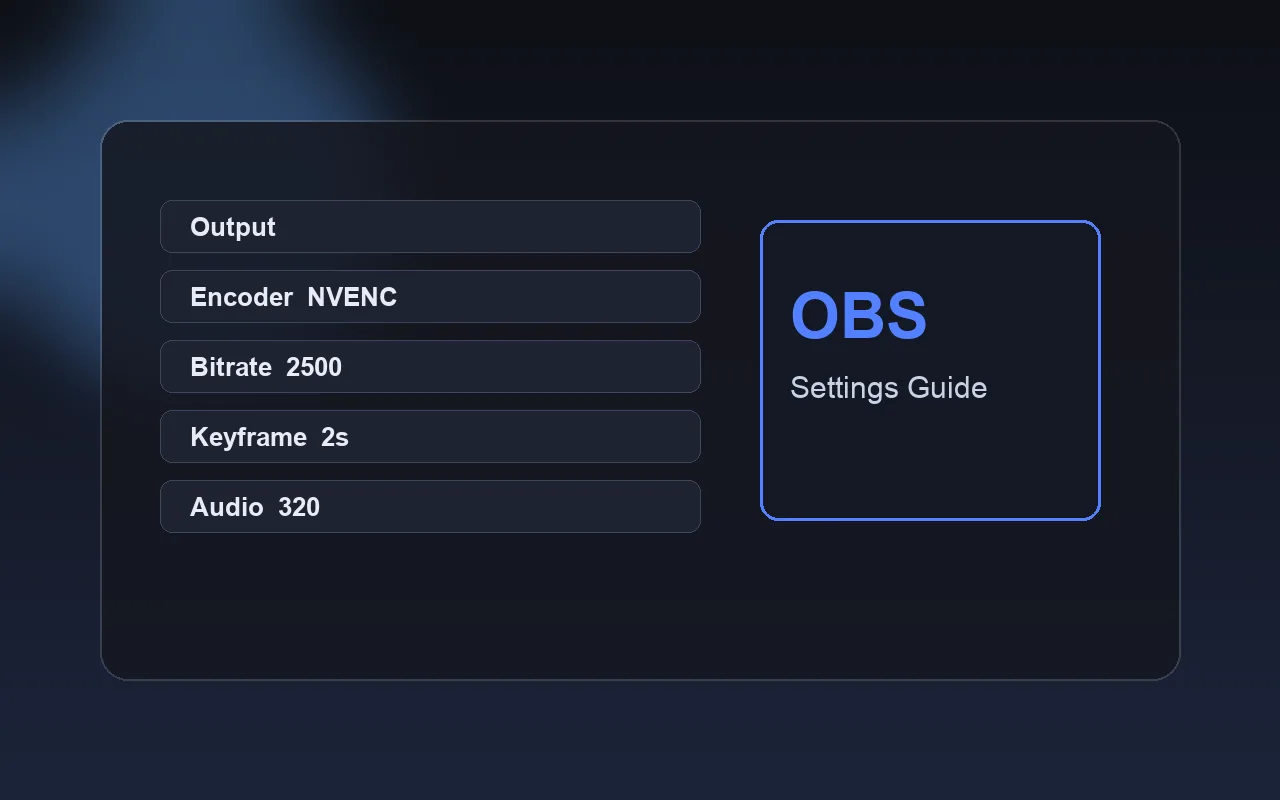
Most problems streamers report to us (choppy video, disconnects, long delay) come down to two things: a bitrate your connection can't sustain, and a wrong keyframe interval. Both take a few minutes to fix.
Know your upload speed first
Download speed doesn't matter here; upload does. Run a speed test and set your bitrate to about 70% of your upload. With 5 Mbps up, around 3500 kbps for video and audio combined stays stable. Go higher and OBS starts dropping frames.
Recommended bitrate
This is the same table you see in the dashboard:
| Resolution | Video (kbps) | Audio (kbps) | Keyframe |
|---|---|---|---|
| 1080p | 4500 | 320 | 2 s |
| 720p | 2500 | 320 | 2 s |
| 480p | 1200 | 160 | 2 s |
| 360p | 600 | 160 | 2 s |
The video bitrate cap on TeleLive is 6000 kbps. If you're not sure, start with 720p at 2500. Most of our viewers watch on phones, where 720p and 1080p look almost the same, but a smooth stream versus a stuttering one is obvious.
Output
In Settings, Output, switch Output Mode to Advanced. On the Streaming tab:
- Encoder:
NVIDIA NVENC H.264on an NVIDIA card,AMD HW H.264on AMD, otherwisex264. GPU encoders take load off the CPU, which helps a lot while gaming. - Rate Control:
CBR - Bitrate: from the table above
- Keyframe Interval:
2 - Profile:
highormain
Don't skip the keyframe setting. Left at 0 or set too high, viewers see the picture late and sometimes playback never starts.
Video and audio
- Base resolution: your monitor's resolution
- Output resolution: the one you picked from the table
- FPS: 30 is usually enough. Use 60 only for fast games, and only if both your PC and your upload can handle it.
- Audio sample rate:
48 kHz
When something goes wrong
Dropped frames
Your connection can't keep up with the bitrate. Lower it by about a quarter. If you're on Wi-Fi, use a cable. Close background downloads and updates.
Encoding overloaded
This one isn't the network; your PC can't encode fast enough. Try the GPU encoder, or lower the output resolution or FPS. On x264, set the preset to veryfast.
Viewers say it stutters but OBS shows no errors
Double-check keyframe and CBR. The analytics tab in your dashboard shows your live bitrate and warns you if it goes over the cap.
Haven't connected OBS to your channel yet? Start with Start streaming on TeleLive.
More guides
 Start streaming on TeleLive: from sign-up to your first stream
 How to support your favorite streamer on TeleLive
 Make a clip from a live stream and share it
 TeleLive, Twitch or Kick?
 Secure streaming with RTMPS on TeleLive
 How to find and watch streams on TeleLive
 TeleLive apps for Android, TV and desktop