Start streaming on TeleLive: from sign-up to your first stream
What you need to stream on TeleLive, how to fill in the streamer application, and how to connect OBS.
To go live on TeleLive you need three things: an account, an approved streamer application, and OBS on your computer. If you have streamed on Twitch or Kick before, the whole setup takes less than ten minutes.
Create an account
Start on the sign-up page. Pick your username carefully because it becomes your channel address. With the username ali, your channel is telelivee.ir/ali and your stream is telelivee.ir/ali/live.
Apply to stream
Streaming isn't open to everyone by default. Someone on our team looks at each application, mainly so the front page doesn't fill up with spam and ad channels.
The form is in your dashboard and asks for:
- Your first name, last name and an Iranian mobile number
- Your age (you must be 18 or older)
- A few lines about what you plan to stream
- Two OBS screenshots: your main scene (a game, for example) and a scene that shows chat
- Whether you have a webcam and a microphone
The screenshots matter. They show us OBS is installed and you are ready to go. A tidy scene, even a simple one, helps.
Server URL and stream key
Once you're approved, the stream key section unlocks in the dashboard. You need two values from it:
- Server (recommended, encrypted):
rtmps://live.telelivee.ir:1936/live - Server (fallback):
rtmp://live.telelivee.ir/live - Stream Key: your private key
Treat the stream key like a password. Anyone who has it can broadcast on your channel. If you ever show it on stream by mistake, generate a new one in the dashboard right away. Full secure setup: streaming with RTMPS.
Connect OBS
- In OBS, open Settings, then Stream.
- Set Service to Custom.
- Paste the RTMPS URL and stream key from the dashboard.
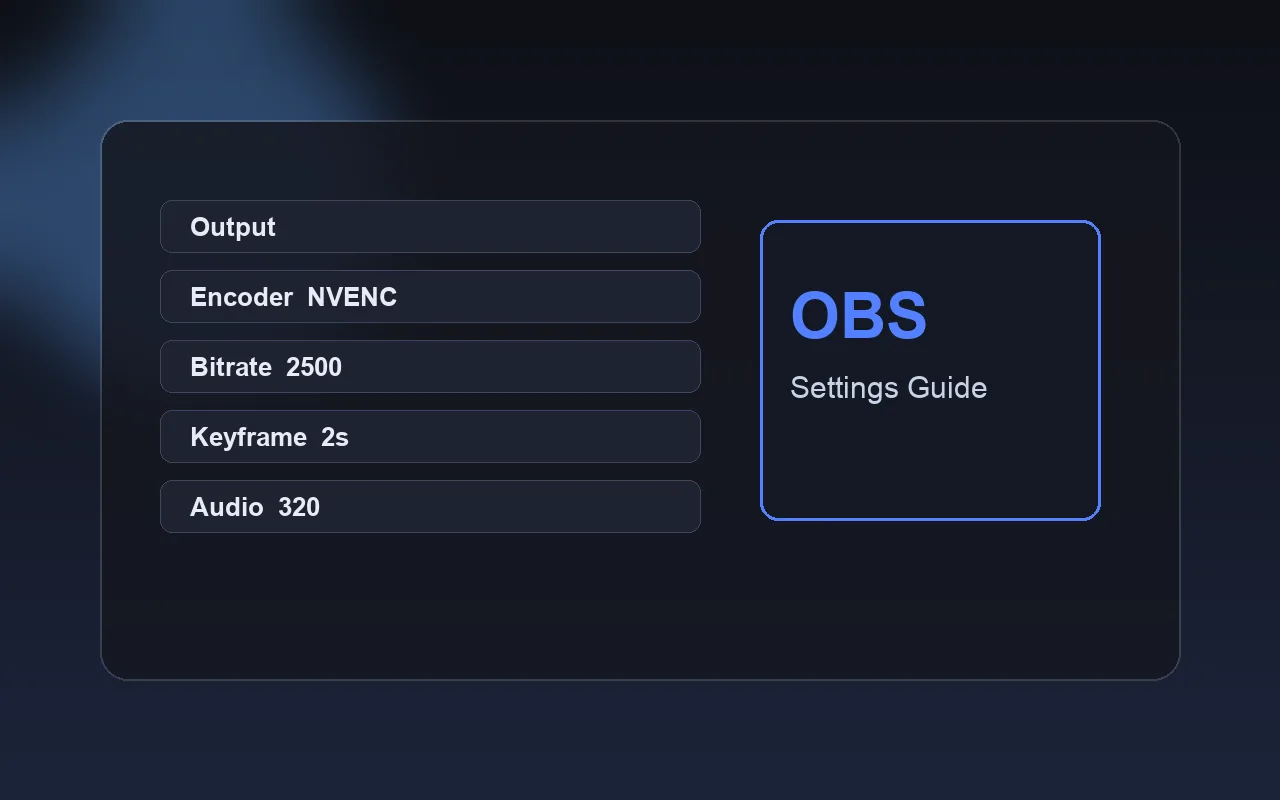
- Take bitrate and resolution values from the OBS settings guide.
Title and category
Set your title and category in the dashboard before you go live. Many viewers arrive through category pages. Someone looking for FIFA streams will find you under FIFA, not under "Other". If your content isn't suitable for under-18s, turn on the +18 option.
Start Streaming
Hit Start Streaming in OBS. A few seconds later your stream shows up on your channel and in its category. Share the link in your Telegram channel and with friends; your first viewers almost always come from there.
What works for our streamers
Channels that grow usually get three things right. They stream at fixed times so viewers know when to show up. They talk to chat, even when only two people are there. And after each stream they clip the best moments and post them on social media (how to make clips).
One more thing: if you don't stream for about 60 days, streamer access is switched off and you'll need to reactivate it.